guides
QR Code
Display a QR code for your tunnel URL in the terminal
Overview
The --qr flag prints a scannable QR code in your terminal when the tunnel starts. Scan it with your phone to instantly open the tunnel URL, perfect for mobile testing.
Usage
bash
zgrok http 3000 --qrThe QR code appears right after the tunnel banner, drawn with Unicode half-block characters so it stays square:
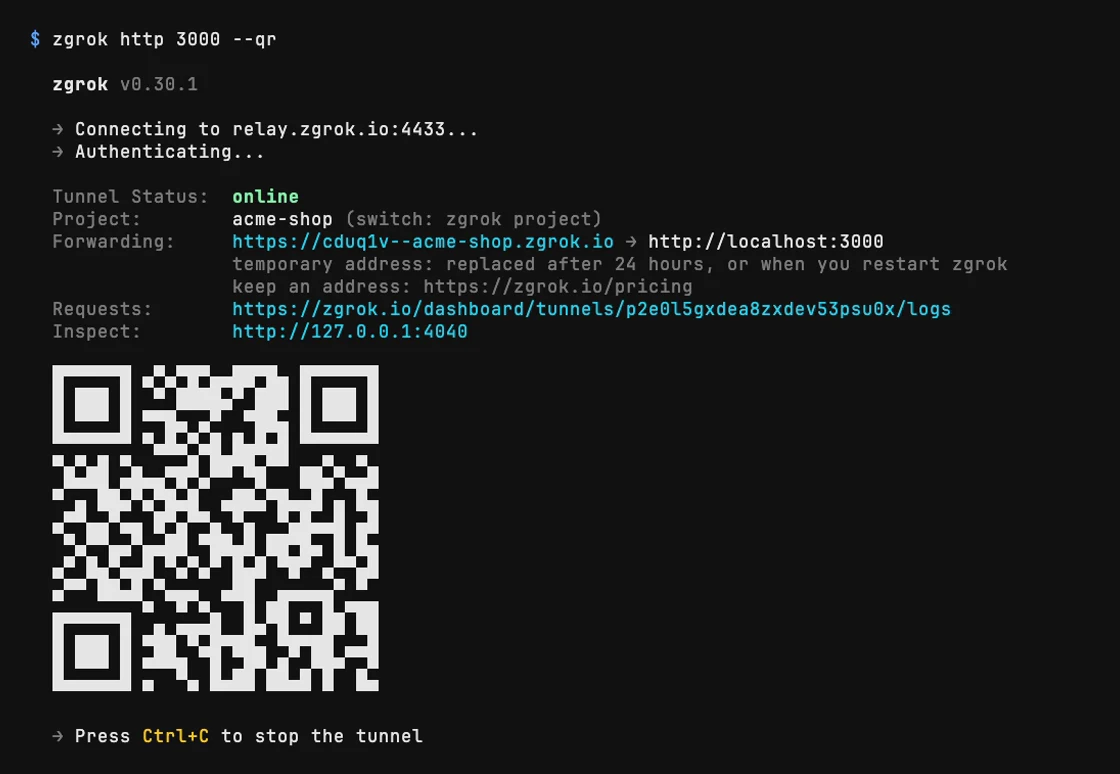
You can try the scan now:

zgrok http 3000 --qrThe code prints right in the terminal. This one is real and opens zgrok.io, so you can try the gesture now.
If it does not scan
- The code is cut off or wrapped. Widen the terminal or reduce its font size, then start the tunnel again.
- The colours are inverted. The code is drawn in your terminal's text colour, so on a dark theme it is light on dark. Most phone cameras read that; if yours does not, use a light theme.
- It opens, and the page says "Local server not running". The phone reached the tunnel, and nothing is listening on the port you named.
- It opens an address that no longer exists. On Free the address changes when you restart zgrok, so scan the code from the current run.
The code holds only the public URL. It does not carry a password: with --basic-auth the phone asks for it, and with zgrok ai the token is still needed on every request.
Use cases
- Mobile testing: test responsive design on your phone without typing URLs
- QA handoff: quickly share your dev server with a tester sitting nearby
- Client demos: show your work on a client's device during a meeting
See also
- Open your site on a real phone: why a LAN address only half works, and what to do about it
- Quick Start: basic tunnel usage
- CLI Reference: all flags